

Conditions
Conditions are a child element of blocks. Here we define the criteria that must be met for the selected action to be performed.
To create a Condition:
- Open the Trigger you created earlier
- Select the Block from the previous step
- Click the [Add condition] button
You will then see the following window:
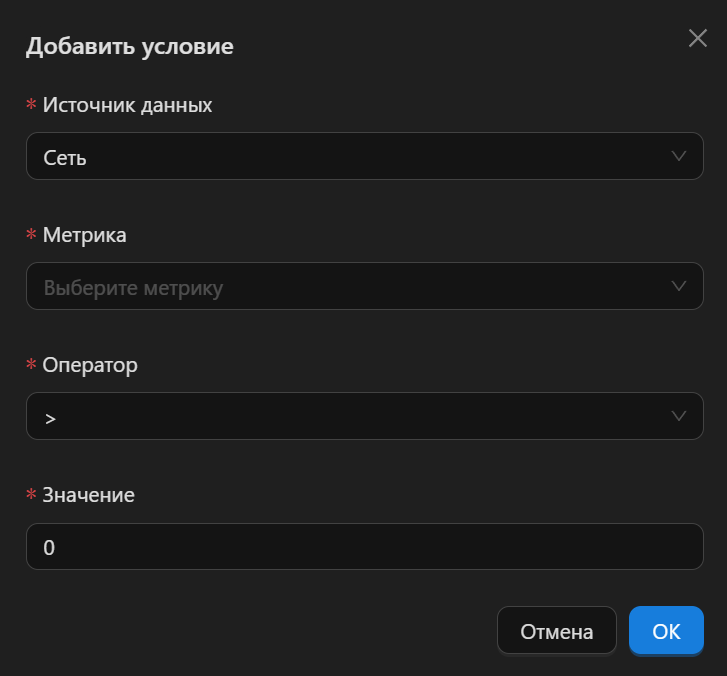
A quick overview of the fields in this window:
- Data Source - which statistics to use, from the ad network or the tracker
- Metric - select the metric you need
- Operator - select the operator you need
- Value - enter the value that the metric's value will be compared against
Data Source
According to the workflow diagram shown at the beginning of the trigger description, the first step is collecting and aggregating statistics. This makes it possible to use the freshest and most accurate data from the primary source, namely the ad network.
This is mostly critical for costs. Costs in the tracker and costs in the ad network never match exactly.
The tracker calculates costs either at a fixed rate per click, or takes the click price from the cost GET parameter (different trackers may use different click price parameters).
The ad network often excludes spam clicks or bot traffic from its calculations, so costs in the ad network are often lower than in the tracker, which reduces the accuracy of Triggers when they take costs from the tracker.
INFO
Clicks, impressions, costs, CTR - better taken from the ad network
Conversions, CR, ROI - better taken from the tracker (where else would you get them, anyway 😄 ).
Metric
Depending on the selected Data Source, a different set of Metrics is available. Moreover, each ad network has its own set of Metrics.
The usual minimum set of Metrics that an ad network provides:
- Clicks
- Impressions
- Cost
Sometimes an ad network also provides CTR, Conversions (if you have set up sending conversions to the ad network), and some others.
As for trackers, we use all the Metrics that each specific tracker offers.
The most popular tracker Metrics are:
- Conversions
- ROI
- CR
- CPA (cost per lead)
Operator
Available Operators:
=- equal to!=- not equal to<- less than>- greater than<=- less than or equal to>=- greater than or equal to
Value
The Value can be either an integer or a floating-point number. For example, you have set up the following Condition:
Metric: Cost
Operator: >
Value: 10
For all Objects whose cost is > 10, the actions configured in the block will be performed.
DANGER
Keep the ad network's currency in mind.